Too Many Tabs? A Four-Bucket System for Browser Tab Overload
Why tabs pile up, how to sort them into Now, Reference, Later, and Done, and which built-in Chrome, Safari, Firefox, and Edge features help.
Ask this guide
Answers come straight from this guide’s text. Nothing is generated, and nothing you type leaves your browser.
You have forty tabs open and can't close any of them. Some are things you meant to read, some belong to a task you haven't finished, and a few you can't explain at all. Working out which is which costs more than leaving them, so the count climbs and the tab strip turns into a row of identical favicons.
There is a way out that doesn't depend on willpower. You'll see what researchers found tabs are actually doing for people, sort every open tab into one of four buckets (Now, Reference, Later, Done), and set up the built-in features of Chrome, Safari, Firefox, and Edge that help hold them. A weekly 15-minute reset keeps the pile from coming back.
Why tabs pile up: each tab is doing jobs you never assigned
In 2010, Patrick Dubroy and Ravin Balakrishnan logged the browsing of 21 Firefox users for 13 to 21 days each, supplemented by diary entries and interviews. Participants were recruited because they used multiple tabs, so they are not a typical sample. Even so, 17 of the 21 often left a tab open as a reminder, ten left pages open without being sure they'd return, and twelve generally made no effort to close tabs when done. Among the 20 participants with usable data, one had a median of 17 open tabs and no one else had a median above six.
Eleven years later the bill arrived. A Carnegie Mellon team including Joseph Chee Chang and Aniket Kittur (CHI 2021) interviewed ten information workers, walked through each of their open tabs four times over two weeks, then surveyed 103 people. They found reasons to keep tabs, such as reminders and dreading a second search, set against reasons to close them, such as limited attention and strained computer resources. Kittur called the keep-side fear the "blackhole effect": "People feared that as soon as something went out of sight, it was gone." About 25% of participants in one part of the study said too many tabs had crashed their browser or computer.
Put together, a tab is four jobs wearing one icon: a workspace (what you're using now), a bookmark (something you'll consult again), a reading list (something you might read), and a reminder (something you should do). Only the first job belongs in an open tab. Closing a tab without relocating its job feels like losing the job, and a bookmark folder you never open is a black hole of its own. So move the job first and close the tab second.
A result from psychology supports the cheapest version of that move. In a series of experiments, four with undergraduates and two with online adult participants, Masicampo and Baumeister (2011) found that unfinished goals caused intrusive thoughts during an unrelated reading task and worse performance on an anagram task, and that writing a specific plan for the goal eliminated those effects. These were short experimental tasks, not browser tabs, and the older Zeigarnik effect they build on has a mixed track record, so applying them here is our inference: a written line saying what you'll do with a page, and when, may do some of a tab's reminding. If hopping between unfinished tasks is the pain, our guide to attention residue and task switching covers that cost.
Sort every tab into one of four buckets
Each bucket matches one of the jobs above and has a home outside the tab strip.
| Bucket | Job the tab was doing | Where it lives instead | Limit |
|---|---|---|---|
| Now | Workspace: you're using it today | An open tab, in the window for its project | About 7 per window |
| Reference | Bookmark: you'll consult it again for a project | A bookmark folder or saved tab group, plus a one-line note | One folder per project |
| Later | Reminder or reading list: might act on it, not today | A dated task with the link pasted in; a reading list is only a staging shelf, emptied at the weekly reset | 7 days, then act or drop |
| Done | Nothing: task finished, or you can't say why it's open | Closed | None |
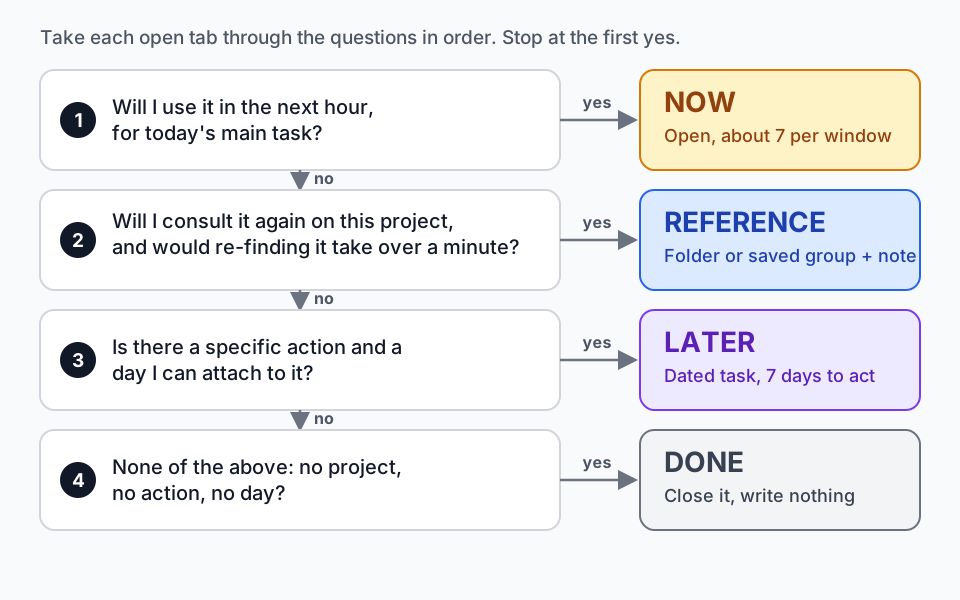
Start with a fast pass: close duplicates, finished tasks, search-result pages, and anything you can't explain. Then take each remaining tab through these questions in order and stop at the first yes.
- Will I use it in the next hour, for today's main task? Now.
- Will I consult it again on this project, and would re-finding it take more than a minute? Reference. Write the one-line note below.
- Is there a specific action and a day I can attach to it? Later. Put the action and date in your task list, not just the link.
- None of the above? Done. A tab with no project, no action, and no day isn't being kept for a reason.
Tabs kept open to be checked (mail, chat, feeds) pull rather than remind. If notifications keep drawing you back to them, our notification audit for Mac, Chrome, and your phone covers that.
Two cases the four questions miss
Tabs you use every day, such as a calendar or project board, can fail the next-hour test and still belong open. Pin them, count them outside the Now cap, and re-justify each at the weekly reset. Four participants in the 2010 study kept frequently used pages open in a tab.
Tabs whose value is the page's state. Six participants in the same study kept a page open to leave it "as-is", and three liked returning to the exact place in it. A bookmark loses that. If the state is the point, write it in the one-line note, for example "filtered to open issues, sorted by oldest" or "video at 14:20" (hypothetical examples). If you can't say it in one line, finish the task today or keep the tab in Now.
A worked example: 34 tabs
Say you're planning a conference trip with 34 tabs open. The fast pass closes 16 (duplicates, finished bookings, search results). Of the remaining 18, five are Now, six are Reference (venue rules, visa page, a transit guide), and seven are Later (restaurant options, a talk to watch). At about 5 seconds per Done tab, 10 per Now, and 40 per Reference or Later (assumed timings; time yourself), that is 80 + 50 + 240 + 280 = 650 seconds, under 11 minutes. You end with five open tabs, one saved group, and seven dated tasks.
The same mix at 150 tabs takes roughly 48 minutes. Past about a hundred tabs (our rule of thumb), run the weekly dump below first and triage only the tabs you reach for.
Capture before you close: the one-line note
The note lets you close the tab without the black-hole feeling. Use this template for every Reference and Later item:
Template: Project — why I kept it — next action — by when
Example:  Berlin conference — only train that arrives before the 9:00 start — book once Dana confirms dates — Fri
Example:  Caching course — the chapter on invalidation — watch from 12:40 — Thu
Keep it to one line; anything longer belongs in your normal notes. Don't skip the why, the part you forget first: a page title like "Rail timetable" says nothing in two weeks. For Reference, put the line in the bookmark's name or the project's doc. For Later, make it a dated task with the link pasted in. For Done, write nothing. A search-results tab is usually Done; if the query was good, save its text.
If you use Chrome and want the note to reappear when you return to the page, TabNotes, a Chrome extension we build, can attach a note to an exact URL or a whole domain. The system doesn't need it; a bookmark name and a dated task do the same job. Our tab note-taking workflow covers attaching notes to locations.
If you close the wrong tab
Chrome, Edge, and Safari each list a shortcut that reopens the last closed tab: Ctrl+Shift+T in Chrome and Edge on Windows, and Command+Shift+T on a Mac in all three. To find a tab you still have open, use Chrome's tab search (Ctrl+Shift+A, or Command+Shift+A on a Mac) or type @tabs in the address bar and press Space or Tab. Mozilla's shortcut page wouldn't load for us, so check Firefox's help. A reopen shortcut is a short-term undo; the one-line note is the long-term one.
What each browser gives you for the buckets
Feature names change often, so treat older tutorials with suspicion. Chrome, Safari, and Edge details were checked against vendor documentation in October 2026. Firefox details come from Mozilla's 2025 release notes, which we couldn't re-check against a support page.
| Job | Chrome | Safari (macOS 27) | Firefox | Edge |
|---|---|---|---|---|
| Group tabs by project | Right-click a tab > Add tab to group > New group | Down arrow beside the Sidebar button > New Empty Tab Group | Drag one tab onto another, pause, drop (Firefox 137 and later) | Workspaces |
| Keep a group after you close it | Close group: saved in the bookmarks bar or under More > Tab groups | Not covered in the pages we checked | Groups are always saved; reopen later | Saved Workspaces (see the Edge notes) |
| Keep groups in step across devices | Syncs when history and tabs sync is on | Through Safari's iCloud settings | Not covered in the notes we checked | Microsoft says new V2 workspaces won't sync (see the Edge notes) |
Chrome on desktop
- Groups. Name the group, then select its name or colored circle to collapse it. Close group parks it: Google says a closed group isn't deleted.
- Read later. More > Bookmarks and lists > Reading list > Add tab to reading list.
- Auto-sorting. The Chrome tab-management page we checked describes no automatic tab organizer.
Warning: In Chrome, Delete group and Ungroup both remove a saved group on your device and on other devices that use the same Google Account, and Google's page describes no undo. Only Close group keeps the group.
Safari on macOS 27
Tab Groups have been in Safari since version 15 (2021). If the sidebar is already open, click Add Tab Group instead of the down arrow. Control-click a tab and choose Move to Tab Group, or drag tabs in. The macOS 27 guide also describes Apple Intelligence grouping tabs into suggested topics, where it's available (Apple says not in all languages or regions).
Firefox 137 and later
Tab groups began rolling out gradually with Firefox 137 on April 1, 2025, and Mozilla's 138.0 notes say they reached all users. Groups can be named and color-coded. Firefox 141 (July 22, 2025) added a local AI model that groups similar tabs and suggests names, as a progressive rollout.
Edge (Stable 155, October 2026)
- Workspaces. A migration that began rolling out in Edge 145 was still rolling out in Edge 150 (July 2, 2026), the last release note we found that mentions it. It moves saved data from OneDrive and SharePoint to Edge Sync and removes sharing. Microsoft says "New v2 Workspaces created after migration won't sync across devices and will remain local to each device", in a sentence about organizations that disabled Sync, so it's unclear who it applies to. Test on a second device before relying on it.
- Collections was removed in Edge 149 (June 4, 2026); Microsoft advised exporting it or moving pages to Favorites first.
- Suggested groupings. Edge 155 (October 8, 2026) expands suggested groupings and names for tabs and Workspaces, controlled by Let Microsoft Edge help keep your tabs organized at
edge://settings/privacy/services.
Pausing and unloading idle tabs: Memory Saver, sleeping tabs, Unload Tab
Browsers can also deactivate or pause idle tabs while leaving them in the strip. Chrome's Memory Saver deactivates a tab, and Google says it reloads when you open it. Firefox's Unload Tab, per Mozilla's 140.0 notes (June 24, 2025), reduces memory and CPU use. Edge's sleeping tabs differ: Microsoft says a sleeping tab "simply pauses the page", so it resumes faster than a discarded tab, which frees more resources but must reload.
| Browser | Control | Where | Automatic? | What can stay awake |
|---|---|---|---|---|
| Chrome | Memory Saver | Settings > Performance (Moderate, Balanced, or Maximum) | Yes | Audio or video, screen sharing, page notifications, downloads, partially filled forms, pinned tabs, USB or Bluetooth devices, keep-active sites (Google says these may prevent deactivation) |
| Edge | Sleeping tabs | Settings and more > Settings > System and performance > Performance > Automatically put tabs to sleep | Yes | Audio, screen or camera capture, DevTools, casting, sites you've excluded |
| Firefox | Unload Tab | Right-click one or more tabs | Manual control (the 140.0 notes describe only the right-click command) | Not documented in the release notes |
Chrome recommends Balanced. In its keep-active list, google.com also covers subdomains, while .google.com matches only the exact domain. Edge sleeps tabs after two hours by default, but Microsoft says energy saver can shorten that to 30 minutes (moderate battery-saving steps) or five (additional steps). We found no comparable Safari setting in Apple's guide. None of these reduce the count or the reminding job: they are a safety net for the machine, not the system.
Note: Don't park unsaved work in a background tab. Chrome's help says tabs with partially filled forms may be left active, which is not a promise. Save the draft.
One window per project, and a cap on Now
Keep one window, or one named group, per project, and switch projects by switching windows. A window that mixes projects rebuilds the "which tab was for what" problem. For a hard split such as work and personal, a separate browser profile is stronger: Google says a Chrome profile keeps bookmarks, history, passwords, and other settings separate.
Cap Now at about seven tabs per window. That number is our rule of thumb, not a measured threshold. Treat it as a trigger: if you can't say what a tab is for without hovering over it, triage before you open another.
In the 2010 study, all 8 participants the authors classed as tab power users, and none of the other 13, called opening links in new tabs a habit. That is self-report from volunteers, so it shows an association, not a cause. Still, before opening the sixth tab from a results page, decide which three you'll actually read.
Comparisons get their own group with an exit condition: when you decide, write the decision and its main reasons in one place, then close the group. Carnegie Mellon's release says tab overload also arises from sensemaking and decision tasks, such as comparing cameras across reviews and shopping sites; our tab note-taking workflow has a software-evaluation example.
The weekly tab bankruptcy: a 15-minute reset
Even a good system leaks. Once a week, declare bankruptcy on whatever drifted into Now. The minutes are our estimates for a few dozen tabs.
- Pick a fixed slot (1 min). The end of your weekly review works well.
- Dump (3 min). Move every tab that isn't part of your current top task into one new group or folder named with today's date, such as "Bankruptcy 2026-10-09". The date is the expiry label. By browser:
- Chrome: hold Ctrl and select the tabs (or select the first, hold Shift, and select the last), right-click, and choose Add tabs to group.
- Safari: choose New Empty Tab Group, then Control-click each tab and choose Move to Tab Group. New Tab Group with N Tabs takes every tab in the window, Now tabs included.
- Firefox: drag one tab onto another, then drag the rest in. It is slow for a big pile.
- Chrome and Edge: Ctrl+Shift+D (Command+Shift+D on a Mac) saves all open tabs as bookmarks or favorites in a new folder, per Google's and Microsoft's shortcut lists. It includes Now tabs, so delete those afterwards. We found no Edge steps for moving many tabs into a workspace.
- Close the dump (1 min). In Chrome and Firefox a closed group is saved, not lost.
- Skim, then delete last week's dump (2 min). Read the titles for about a minute and pull out anything you'd regret losing, three at most, each with a one-line note. Then delete the group (in Chrome, choose Delete group, not Ungroup) or the bookmark folder. If nothing was missed all week, the buckets are working.
- Pull what the week demands (8 min). For items you do want, run the four questions and write the one-line note before filing each in a project group, bookmark folder, or task.
Where to start this week
Tally what your pile is mostly doing and start there. Reminders become dated tasks, reading goes to a reading list and a weekly slot, reference gets a folder or saved group per project, and workspace tabs get one window per project.
- Today, 15 to 20 minutes: run the fast pass and the four questions. Write notes only for Reference and Later.
- Friday: do the first reset. Nothing to delete yet.
- In a month: check whether Now stays at about seven tabs or fewer per window. If it doesn't, your Later items probably have no dates.
Frequently asked questions
How many tabs is too many?
No authoritative number exists, because it depends on the pages. In the 2010 study every participant but one had a median of six or fewer tabs open, but those were volunteers' logs, not a recommendation. A working test is that you have too many when you can't name each tab's job without hovering over it.
Does closing tabs make my computer faster?
Closing a tab frees the memory it held, which is why Memory Saver, sleeping tabs, and Unload Tab exist. We found no authoritative tab count at which a computer slows. If the machine struggles, pausing or unloading idle tabs gets some of the benefit without closing anything, while closing mainly helps your attention. Save unsaved work first.
Do tab-management extensions solve this?
They can store tabs, but only you can decide what each one is for. Carnegie Mellon's team built Skeema, a Chrome extension that treats tabs as tasks. Their release says early beta testers kept fewer tabs and windows, with no numbers given, and we haven't tested it. An extension earns its place only if it does something your browser can't, such as carrying a note to a page. The buckets still apply either way.
Sources and further reading
- When the Tab Comes Due: Challenges in the Cost Structure of Browser Tab Usage — Chang, Hahn, Kim, Coupland, Breneisen, Kim, Hwong, and Kittur, CHI 2021. Ten interviews and a 103-person survey on the pressures to keep and close tabs.
- Overcoming Tab Overload — Carnegie Mellon University, 2021. The "blackhole effect" quote, the crash figure, the point about sensemaking and decision tasks, and the Skeema beta.
- A Study of Tabbed Browsing Among Mozilla Firefox Users — Dubroy and Balakrishnan, CHI 2010. The 21-participant study behind the reminder, median-tab, power-user, as-is, and new-tab-habit figures.
- Consider It Done! Plan Making Can Eliminate the Cognitive Effects of Unfulfilled Goals — Masicampo and Baumeister, Journal of Personality and Social Psychology, 2011 (doi 10.1037/a0024192). Supports the claim that a specific written plan removed the intrusion effects of unfinished goals in lab and online tasks.
- Manage tabs in Chrome — Google Chrome Help. Tab groups, saved groups, multi-select, and tab search; see also Read pages later, Memory Saver, Chrome keyboard shortcuts for reopening closed tabs and bookmarking all tabs, and Manage Chrome with multiple profiles.
- Group tabs in Safari on Mac — Apple, macOS 27 edition. Creating and moving Tab Groups and Apple Intelligence suggestions; see also Edit and customize Tab Groups for iCloud sync, the Safari 15.1 guide showing Tab Groups in 2021, and Keyboard shortcuts and gestures in Safari on Mac for reopening a closed tab.
- Firefox 137.0 release notes — Mozilla, 2025. Tab groups, the drag gesture, and the always-saved behavior; see also the 138.0 notes for availability to all users, the 140.0 notes for Unload Tab, and the 141.0 notes for on-device tab grouping.
- Microsoft Edge release notes for Stable Channel — Microsoft, 2026. Edge 155 (October 8, 2026) and its tab-organization setting; see also the release notes archive for the Collections removal and the Workspaces migration, Learn about performance features in Microsoft Edge for sleeping tabs, and Keyboard shortcuts in Microsoft Edge.
TabNotes attaches notes to tabs, URLs, and domains in Chrome, but the four-bucket method works with nothing more than your browser and a task list.